Image Filters
Enhance your photos instantly with our Online Image Filters. Experience the #1 Best image filter tool on Calcflow.net. Our professional-grade engine provides photo filters online, real-time color adjustments, and batch image filters to help you craft perfect visuals with 100% precision.
Select or Upload an image to start editing
Adjustments (Live)
Transformations
Quick Presets
Export Settings
Table of Contents
Toggle
Why our Online Image Filters are Essential for Social Media
In the modern era of visual storytelling, a raw photograph often lacks the emotional impact needed to engage an audience. Whether you are a social media influencer, a web developer, or a digital marketer, having access to high-quality image filters is the key to creating a consistent brand aesthetic. Our tool is a full-scale design utility engine designed to give you total control over the colors, lighting, and orientation of your photos. Unlike basic apps, these image filters work entirely in your browser using local JavaScript, providing a professional experience with high-speed rendering and 100% data privacy.
At Calcflow.net, we prioritize technical accuracy and creative flexibility. That is why our image filters don’t just overlay colors; they provide a comprehensive audit of your visual data. Every adjustment is rendered instantly, helping you track alignment, contrast, and saturation levels with pixel-perfect feedback. With its modern UI and specialized sidebar modules, this tool is the perfect professional bridge between a simple photo app and an expert-level editing suite.
Tip: To stay fit and monitor your body metrics during long design work sessions, use our [BMI Calculator] for accurate results.
How to use Photo Filters Online (Step-by-Step Guide)
Our tool is designed for maximum productivity without a steep learning curve. To get the most out of your image filters session and optimize your content strategy, follow these detailed steps:
Step 1: Image Selection and Precision Positioning
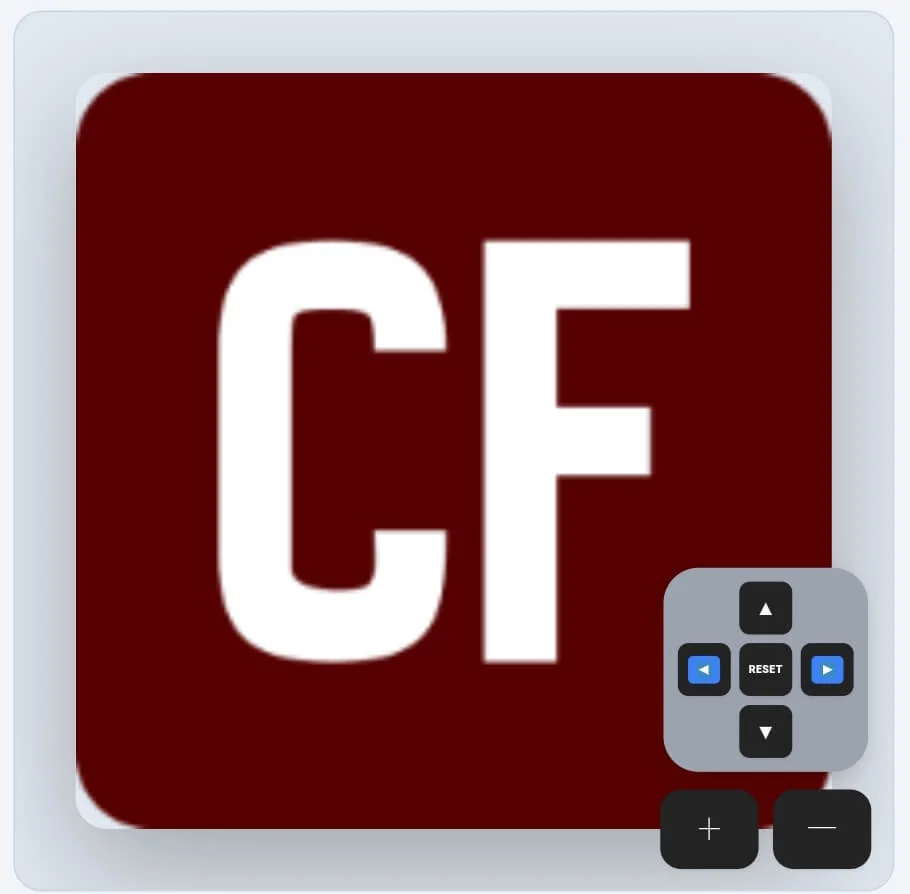
Start by dragging your photo into the editor or clicking the “Upload Images” button. Our image filters support bulk uploads, allowing you to manage entire galleries in the bottom strip. Once loaded, use the specialized D-pad movement system to position your elements. Use the + and — buttons for granular zooming or the 4-way arrows to align your subject perfectly. This level of control ensures your image filters are applied exactly where you want them on the canvas.
Tip: If you need to remove duplicate filename entries from your design records, try our professional [Duplicate Remover] tool.
Tip: To ensure your filtered design file sizes are perfectly optimized for fast loading, use our [Image Compressor] utility.
Step 2: Applying Live Adjustments and Color Sliders
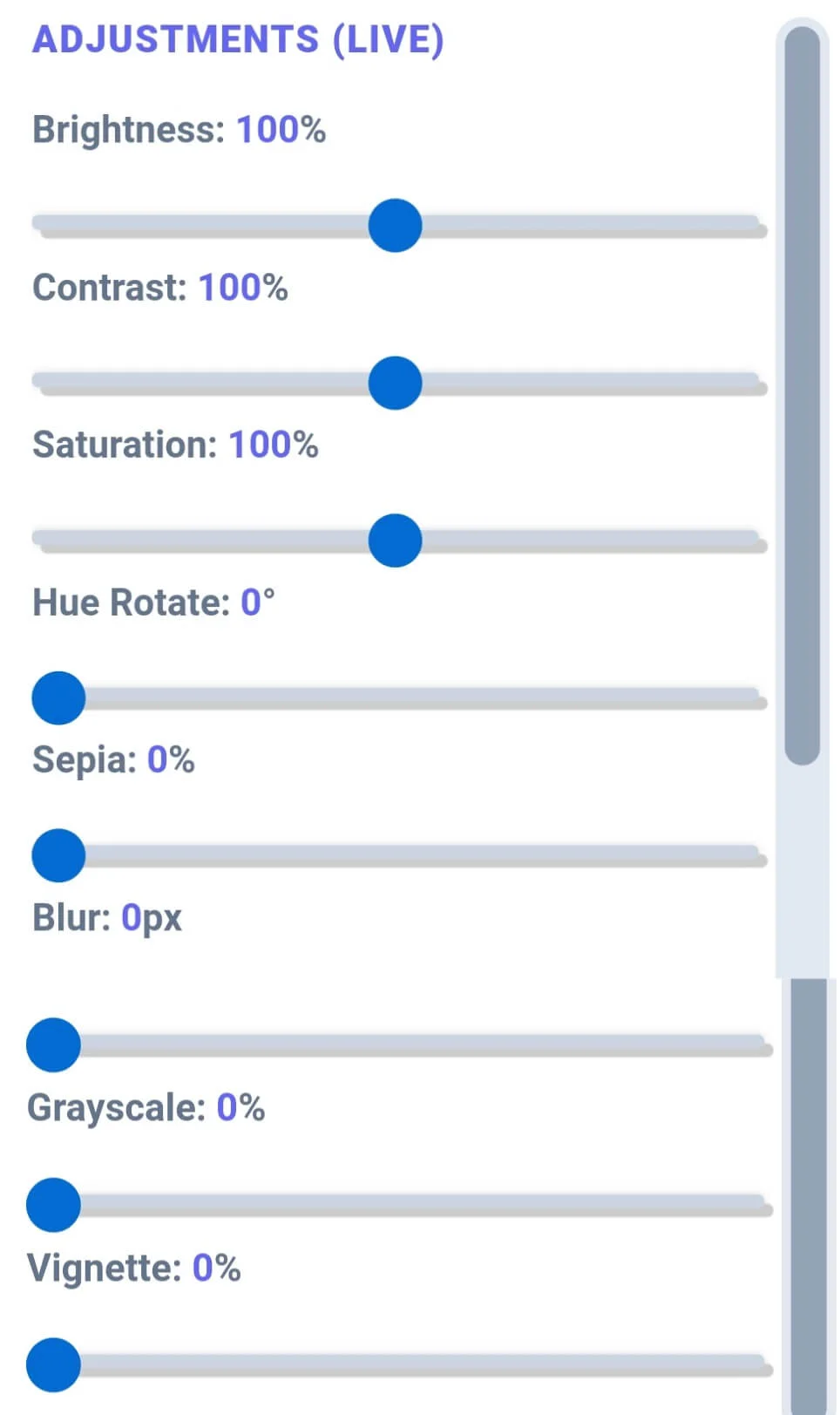
The sidebar is where you define the technical parameters of your edit. Use the Adjustments (Live) module to tweak brightness, contrast, and saturation. Our image filters also include advanced sliders for hue rotation, grayscale, and sepia. One unique feature is the Vignette slider, which adds a professional artistic focus to your photos. Every change happens in real-time, allowing you to see the exact impact of your image filters before you finalize the export.
Tip: For detailed word-level analysis of your image captions or technical logs, try our specialized [Word Counter] tool.
Tip: To change the extension of your exported designs, use our [Format Converter] tool instantly.
Step 3: Transformations and Quick Effect Presets
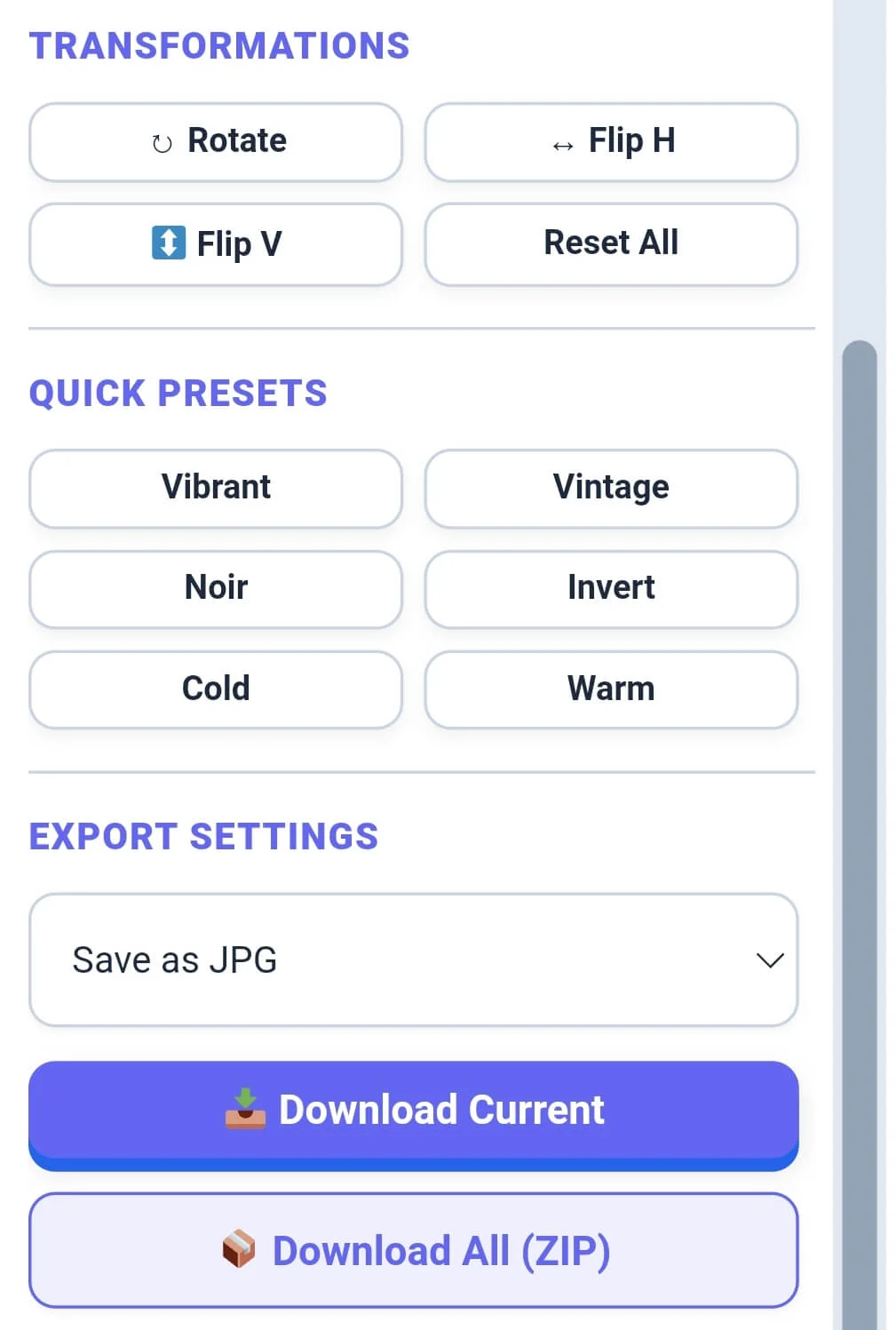
The Transformations module allows you to rotate and flip your assets horizontally or vertically with one click. For a faster workflow, our image filters include Quick Presets like Noir, Vibrant, and Vintage. These effects instantly change the mood of your photo without manual slider adjustments. This technical depth makes managing your image filters projects much more professional than using basic mobile apps or social media built-in editors.
Tip: To check the exact character count for image alt tags or SEO descriptions, use our [Character Counter] utility.
Tip: If you need to organize your asset credits or image logs line by line, try our specialized [Line Counter] tool.
Step 4: Batch Queue Management and Exporting
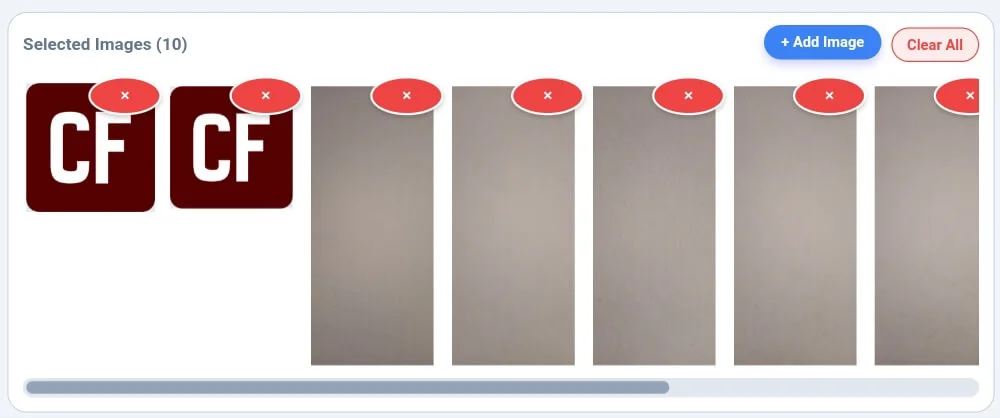
After applying your image filters, use the bottom gallery to switch between different images in your batch. The “Selected Images” counter helps you keep track of your progress. Finally, navigate to the export module. You can download the current image or click “Download All (ZIP)” to save your entire edited batch at once. Our image filters support JPG, PNG, and WebP exports, ensuring that your final files are ready for any digital platform instantly.
Tip: To structure your social media documentation or design paragraphs perfectly, use our [Paragraph Counter] for balance.
Tip: To rotate your uploaded images before adding them to the canvas, use our specialized [Image Rotate] tool.
Professional Comparison: Standard Apps vs. Calcflow
Most free online editors add forced watermarks or require server uploads that compromise your privacy. Our image filters provide a full suite of professional modules for high-resolution, watermark-free output.
Zero Watermarks: Enjoy 100% clean designs for your brand with no forced branding on your files.
Local Rendering: All processing happens in your browser; your private images are never uploaded to any server.
Batch Action Support: Save hours of work by applying image filters and downloading your entire gallery in one ZIP file.
Precision D-pad: Position and zoom into elements with a level of control that touchscreens cannot match.
Custom Adjustments: Detailed sliders for sepia, grayscale, blur, and vignette effects.
| Feature | Standard Online Editor | Calcflow Image Filters |
| Watermark-Free Export | ❌ No | ✅ Yes |
| Batch ZIP Download | ❌ No | ✅ Yes |
| D-pad Precision Zoom | ❌ No | ✅ Yes |
| No Server Upload (Private) | ❌ No | ✅ Yes |
| Vignette & Hue Control | ❌ No | ✅ Yes |
| Quick Preset Library | ❌ No | ✅ Yes |
| 16px Desktop Navigation | ❌ No | ✅ Yes |
Tip: To change the case of your design text for better impact, use our [Text Case Converter].
Benefits for Influencers, Designers, and Developers
The image filters suite on Calcflow is more than a simple editor; it is a productivity asset for the digital professional. Influencers can create consistent aesthetic themes for their grids without expensive software. Designers can quickly test different moods for a logo or banner using our quick presets. Developers find the image filters useful for preparing banners or OG-images for web projects with 100% privacy. By utilizing the specialized sidebar modules, you can sanitize and organize your visual brand data in seconds.
Tip: For unique artistic layout designs or flipped text in your designs, try our professional [Text Reverser] engine.
Tip: For secure communication or hidden messages in your designs, try our [Text to Morse Code] tool.
The Technical Logic of our Free Image Filter Tool
The technical execution of digital image filtering relies on the precise manipulation of pixel-level data through mathematical algorithms. Our image filters engine utilizes high-performance browser rendering to ensure that every adjustment—from brightness to complex vignette effects—is applied in a logical sequence that maintains image clarity. This granular control is essential for professional designers who require predictable results without the need for heavy software. To explore the technical science behind how browser-based filters transform and render visual data, you can refer to the official MDN Web Docs guide on CSS filters.
Tip: For technical data handling, you can convert your design tags into binary with our [Text to Binary] tool or decode them using [Binary to Text] instantly.
Frequently Asked Questions (FAQs)
1. How do I apply multiple image filters to one photo?
In this tool, you can move multiple sliders simultaneously. For example, you can increase brightness while adding blur and a vignette effect. Our image filters combine these values in real-time on the canvas for instant feedback.
2. Is my private image data secure on Calcflow?
Absolutely. All processing in our image filters happens locally in your browser via JavaScript. We never store or upload your private photos to our servers, ensuring 100% privacy and security.
3. Can I download all my edited images at once?
Yes! Our image filters tool features a “Download All (ZIP)” button. This allows you to export your entire queue of filtered images in one single compressed archive file.
4. What are Quick Presets in the sidebar?
Quick presets are pre-defined configurations that apply specific moods—like Noir, Vintage, or Cold—to your photos instantly, saving you from manual slider adjustments in the image filters dashboard.
5. What file formats are supported for export?
You can download your final work in high-quality PNG, JPG, or the modern WebP format. Our image filters ensure that every export is optimized for both visual clarity and fast loading.
6. Does this tool support Dark Mode?
Yes, click the “🌓 Toggle Theme” button in the top right corner. This reduces eye strain while you manage large batches of photos or technical assets in our professional image filters suite.
Tip: To secure your photography account logins, use our [Password Generator] to create unhackable keys.
Conclusion: The Professional Choice for Visual Design
The image filters suite on Calcflow.net stands as the most comprehensive media manipulation tool available online. By combining real-time metrics with advanced resizing and conversion options, we have built a platform that caters to both creative and technical minds. Stop struggling with slow cloud editors and let our professional tool handle the heavy lifting for you. Our batch image filters and adjustment tools make it easy to maintain a consistent look for your brand. Bookmark this online image filters suite today.