Text to Morse Code
Craft perfect signals with our Morse Code Converter. Experience the most reliable encoding with the #1 Best text to morse code tool on Calcflow.net. Our professional-grade Morse Code Translator provides real-time translation and advanced formatting for any technical project with 100% precision.
Lines
0
Words
0
Dots (.)
0
Dashes (-)
0
Top Char
-
Morse Actions
Text Formatting
Advanced Cleaning
Find & Replace
Table of Contents
Toggle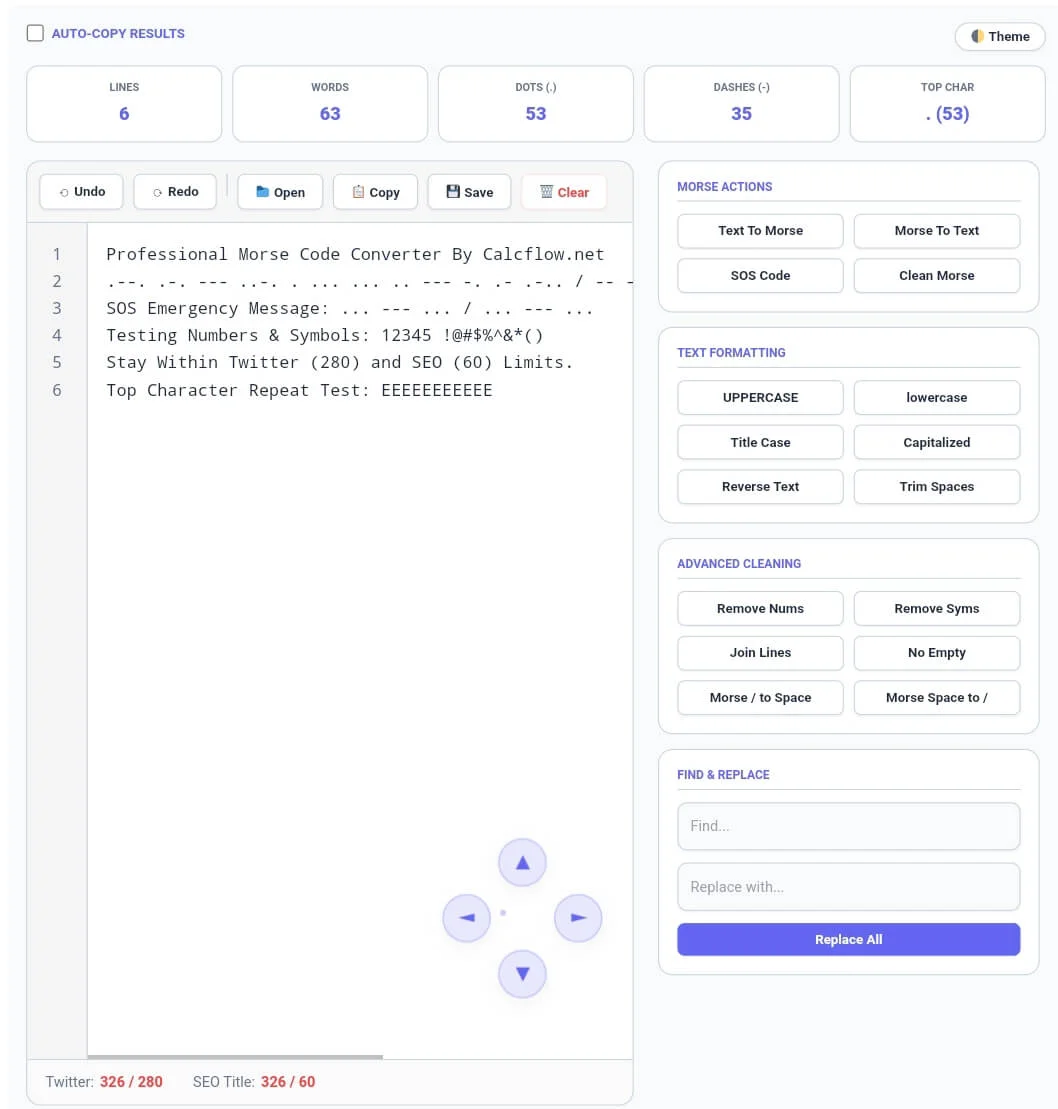
Why our Morse Code Converter is Essential
In the diverse world of digital communication, accuracy in encoding is paramount. Whether you are a student learning the telegraph language, a developer testing string manipulation, or an SEO expert creating unique designs, a basic converter isn’t enough. Our text to morse code is a full-scale text utility engine designed to give you total control over the structure and frequency of your signals. Unlike basic online tools, this version provides a professional experience with high-speed processing and a clean, ad-free interface.
At Calcflow.net, we believe that utility should be coupled with deep analysis. That is why our text to morse code doesn’t just swap characters; it provides a comprehensive audit of your code. Every action you take is reflected in our real-time statistics grid, helping you keep track of dots, dashes, and top character frequency. With its modern UI and specialized sidebar, this tool is the perfect professional bridge between a simple flipper and a technical analysis suite.
Tip: For cleaning redundant lines in your data lists, try our specialized [Duplicate Remover] tool.
How to use the Morse Code Translator
Our tool is designed for ease of use without compromising on power. To get the most out of the Morse Code Converter, follow these simple steps:
Step 1: Input and Real-Time Feedback
Start by typing directly into the editor or pasting your content. You can also use the “Open” folder icon in the toolbar to upload local files like .txt, .js, or .csv. As you enter text, the stats grid at the top will instantly display your Lines, Words, Dots (.), Dashes (-), and Top Char. Monitoring these metrics is crucial for identifying the rhythm and balance of your signals before you finalize the conversion.

Tip: For detailed word-level analysis of your text, try our specialized [Word Counter] tool.
Step 2: Mastering Morse Actions and Formatting
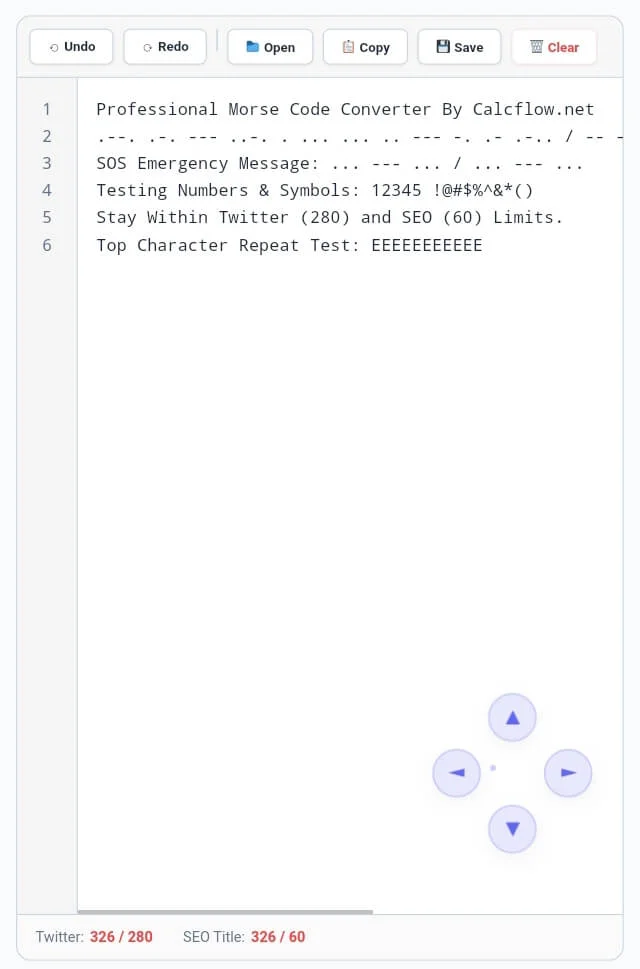
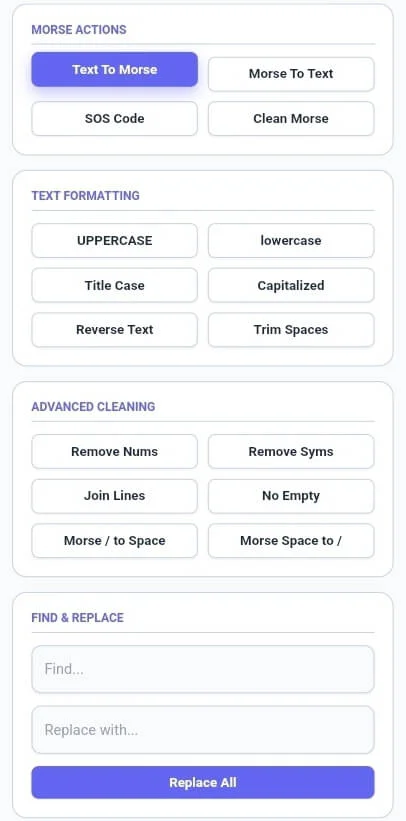
Note for Desktop/Laptop Users: To provide a smooth experience, our professional toolbar is designed with click-and-drag scrolling. If any buttons (like the ‘Clear’ button) are not fully visible, simply grab the toolbar with your mouse and drag left or right to reveal all features. Once your data is analyzed, use the Morse Actions module in the sidebar. Clicking “Text To Morse” instantly converts your letters into dots and dashes. You can also use “Morse To Text” to decode signals or generate an instant “SOS Code” for testing. If you need to normalize your input before conversion, use the Formatting buttons like UPPERCASE or Title Case to ensure your text to morse code output is consistent.
Tip: To check the exact character count for social media limits, use our [Character Counter] utility.
Step 3: Advanced Cleaning and Navigating the Editor
The Advanced Cleaning module allows you to remove numbers or symbols with a single click. For technical users, our editor also features Line Numbers and Undo/Redo buttons for precision. For desktop users, the 4-way glass scroll buttons (D-pad) at the bottom right offer a fluid navigation experience through massive datasets. Please note: The 4-way scroll is an exclusive feature for desktop users to maximize screen space on mobile devices
Tip: If you need to organize your lists line by line, try our specialized [Line Counter] tool.
Professional Comparison: Standard Tool vs. Calcflow text to morse code
Most online tools only offer a single “Translate” button. Our text to morse code provides a full suite of options for professional-grade output. See how we compare below:
| Feature | Standard text to morse code | Calcflow Morse Converter |
| Bi-directional Translation | ✅ Yes | ✅ Yes |
| Real-time Stats Grid | ❌ No | ✅ Yes |
| SOS Code Generator | ❌ No | ✅ Yes |
| Line Numbering System | ❌ No | ✅ Yes |
| Undo/Redo Support | ❌ No | ✅ Yes |
| Morse Cleaning Tools | ❌ No | ✅ Yes |
| 4-Way Glass Scroll | ❌ No | ✅ Yes (Desktop) |
| Auto-Copy Results | ❌ No | ✅ Yes |
Tip: To structure your paragraphs perfectly for documentation, use our [Paragraph Counter] for balance.
The Logic Behind our Morse Code Generator & Encoding
Morse code is a logical system of short and long signals. Our text to morse code ensures that the logical order of your text is preserved while translating between characters and symbols without corrupting the rhythm of the code. This level of technical control is why professionals choose Calcflow for their encoding needs. To learn more about the international standards of this telegraphic system, you can refer to the ITU Recommendation on International Morse Code.
Tip: To change the case of your text for better decoding, use our [Text Case Converter] for instant results.
Frequently Asked Questions (FAQs)
1. How does the "Clean Morse" feature work?
The Clean Morse button instantly removes any character that is not a Dot (.), Dash (-), Slash (/), or Space. This is perfect for sanitizing signals that have accidental letters or symbols mixed in.
2. Why can't I see the D-pad scroll buttons on my mobile phone?
The 4-way glass scroll buttons are optimized specifically for desktop users to provide smooth mouse-based navigation. On mobile devices, touch gestures are more efficient for scrolling.
3. Can I convert Morse code back to plain English text?
Yes! Simply paste your Morse code (using dots, dashes, and slashes for spaces) and click the “Morse To Text” button in the sidebar for an instant English translation
4. Is my data secure on Calcflow.net?
Absolutely. All processing in our text to morse code tool happens locally in your browser via JavaScript. Your data never leaves your computer, ensuring 100% privacy and security.
5. What does the "Morse / to Space" button do?
In many Morse formats, a forward slash (/) represents a space between words. This button converts those slashes into standard spaces, making the code easier to read for other systems.
6. Does this tool support Dark Mode?
Yes, click the “Theme” button in the top right corner to switch between light and dark modes. This helps reduce eye strain during long encoding or decoding sessions.
Tip: For unique artistic layout designs or flipped text, try our professional [Text Reverser] engine.
Conclusion: The Professional Choice for Morse Translation
The text to morse code on Calcflow.net stands as the most comprehensive data manipulation tool available online. By combining real-time metrics with advanced conversion and formatting options, we have built a platform that caters to both creative and technical minds. Stop struggling with manual decoding and let our professional tool handle the complexity for you. Whether you need to convert English to Morse Code for a technical project or just want to learn the language of signals, our Morse Code Translator is your ultimate partner.