WEBP TO JPG
Clean and organize your visual library with the #1 Best webp to jpg tool on Calcflow.net. Our professional-grade engine provides real-time batch conversion, background transparency handling, and surgical privacy cleaning to help you craft perfect JPG files with 100% precision. This secure webp to jpg converter ensures your images are compatible with every platform instantly.
Drop WEBP Images Here
or click to browse
No images added yet
Drop WEBP images or click Add⚙️ JPG Quality
🎨 Background Color
📐 Resize Mode
📝 Batch Rename
Files will be: prefix-1.jpg, prefix-2.jpg...🔒 Privacy Mode
Removes location, camera details⚡ Apply To
📊 Stats
Table of Contents
Toggle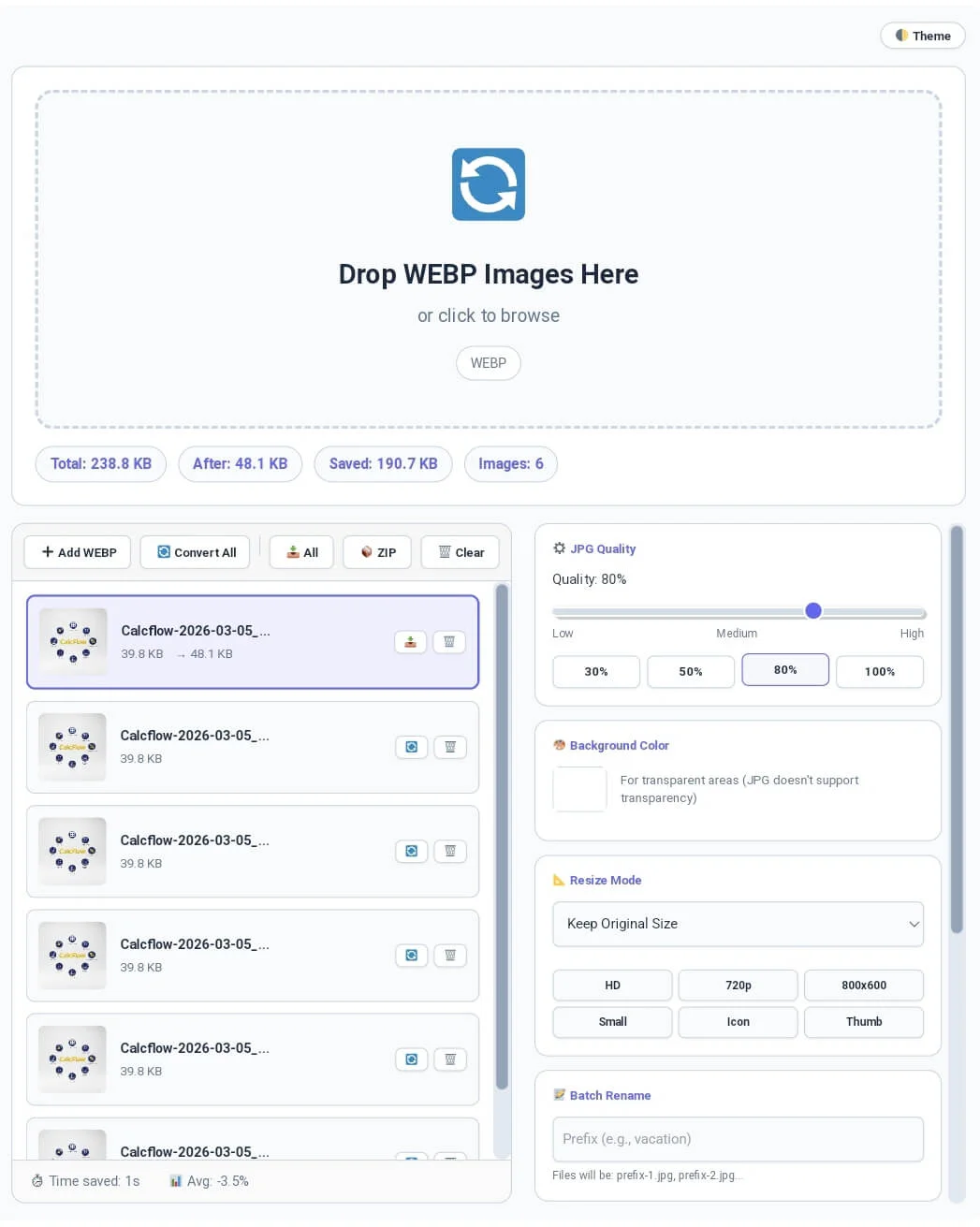
Why our Webp to JPG Converter Tool is Essential
While WebP is excellent for web speed, many legacy applications, printers, and social platforms still struggle with its compatibility. When you need to share images or edit them in older software, you require a reliable webp to jpg converter that preserves every pixel of quality. Our tool is a full-scale technical utility engine designed to solve the common issues of transparency and metadata. Unlike basic online converters, this webp to jpg version provides a professional experience with high-speed local processing and zero server-side data exposure.
At Calcflow.net, we believe that file conversion should be technically transparent. That is why our webp to jpg engine doesn’t just change the extension; it provides a comprehensive audit of your data. From choosing a custom background color for transparent areas to stripping away sensitive GPS location data, every action is reflected in our real-time interface. With its modern UI and specialized sidebar modules, this tool is the perfect professional bridge between a simple file flipper and an enterprise-level image management suite.
Tip: To monitor your body metrics during long technical work sessions, use our high-precision [BMI Calculator].
A Comprehensive Guide to using the Webp to JPG Tool
Our tool is designed for maximum productivity without a steep learning curve. To get the most out of your webp to jpg session and optimize your workflow, follow these detailed steps:
Step 1: Batch Upload and Real-Time Feedback
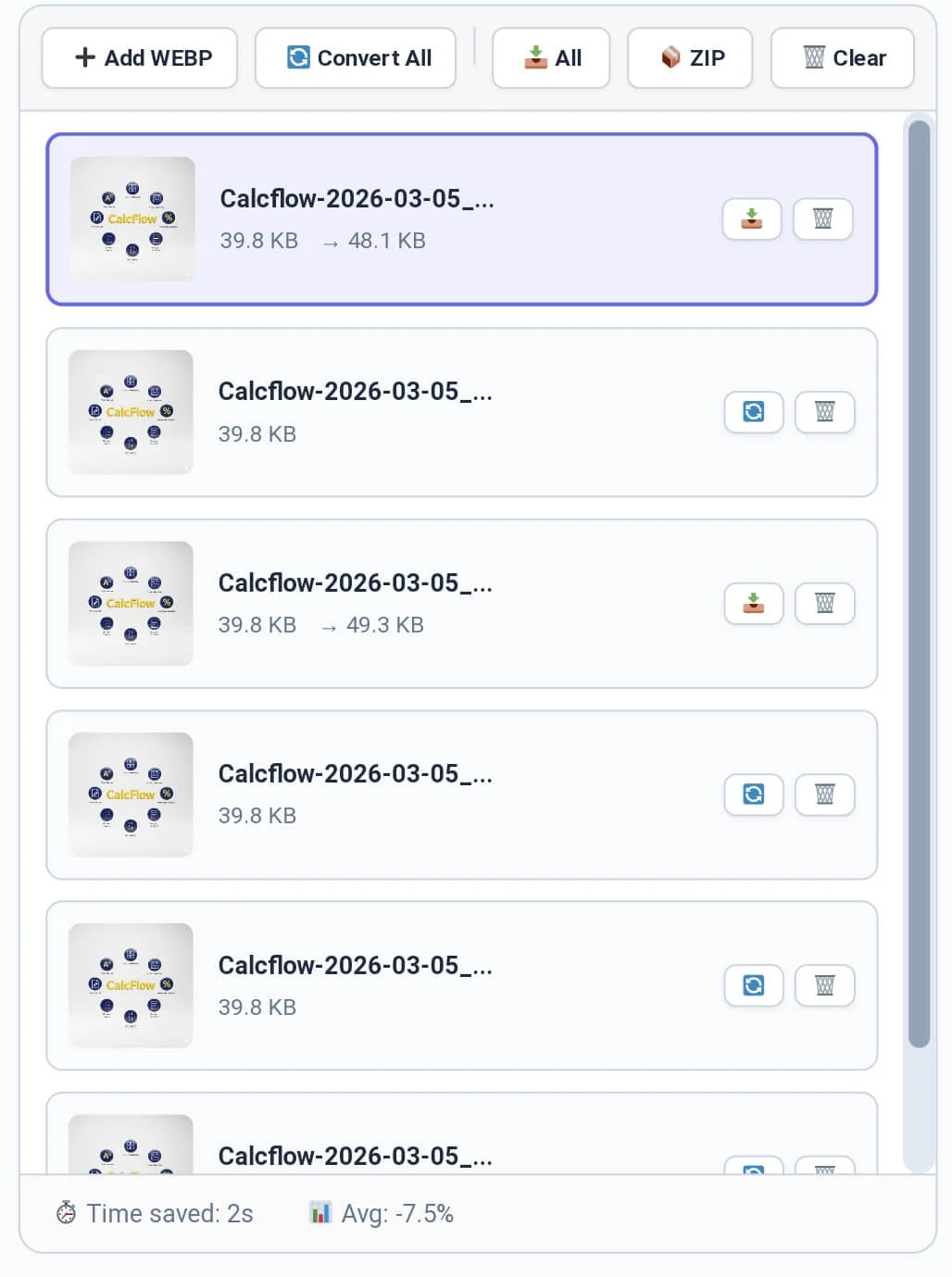
Start by dragging your WebP files into the drop zone or clicking the “➕ Add WEBP” button in the toolbar. Our webp to jpg converter supports high-resolution batch uploads, allowing you to process large galleries simultaneously. As soon as you add images, the stats chips at the top instantly display the Total Size, Saved MB, and Images Count. Monitoring these initial metrics is crucial for identifying the primary structure of your batch before you begin the convert webp to jpg online process.
Tip: To secure your private image gallery account logins, use our [Password Generator] to create unhackable keys.
Tip: To branding your visual designs with professional text, try our [Social Media Maker] tool instantly.
Step 2: Customizing Quality and Transparency Settings
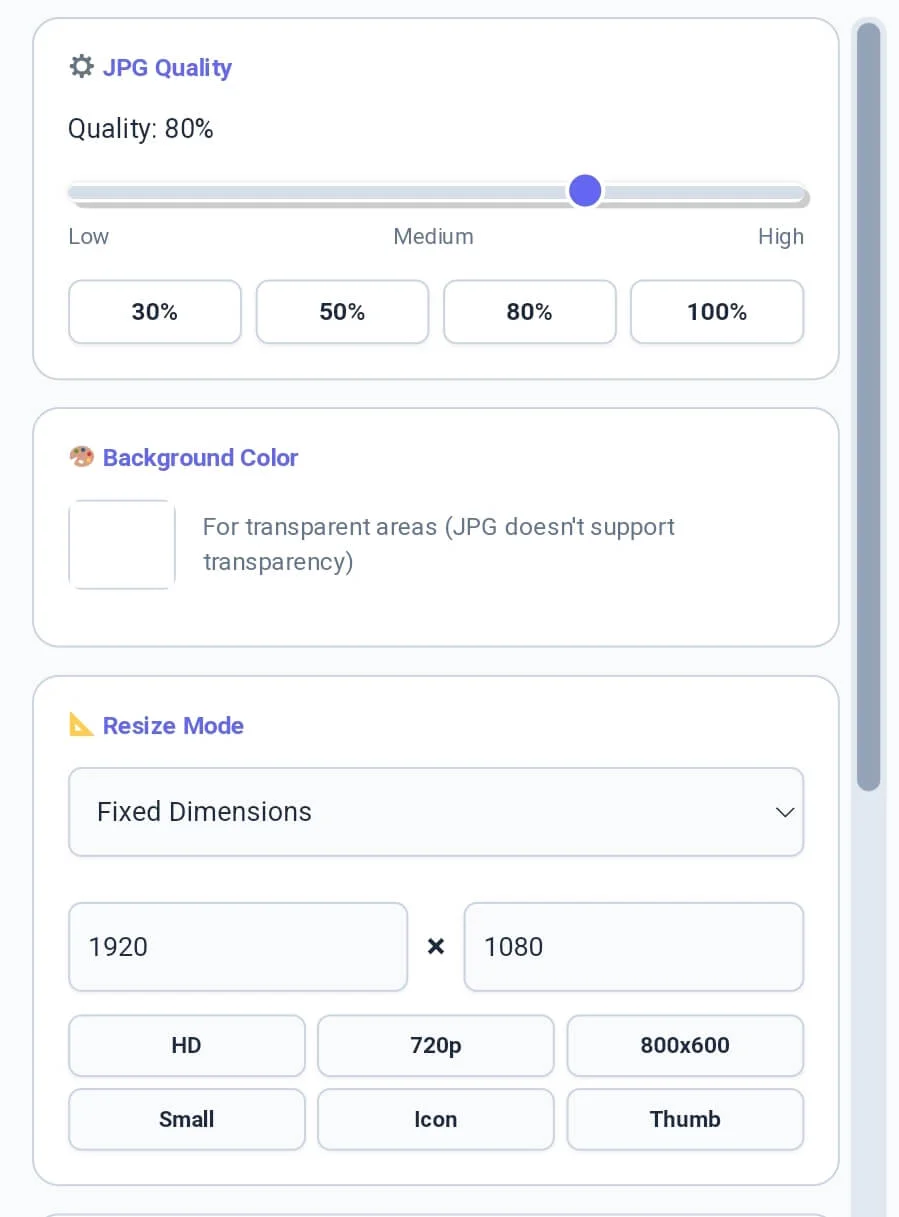
One of the biggest challenges in bulk webp to jpg tasks is handling transparent areas. Since JPG doesn’t support transparency, our sidebar includes a “🎨 Background Color” picker to let you choose a solid fill (default white). You can also adjust the Quality Slider (0-100%) or use quick presets like 80% to ensure your high quality webp to jpg result is sharp and clear. This technical depth ensures that your converted images look professional across all devices.
Tip: If you need to remove duplicate entries from your image filenames list, try our professional [Duplicate Remover] tool.
Tip: For detailed word-level analysis of your image captions, try our specialized [Word Counter] tool.
Step 3: Managing Privacy and Batch Renaming
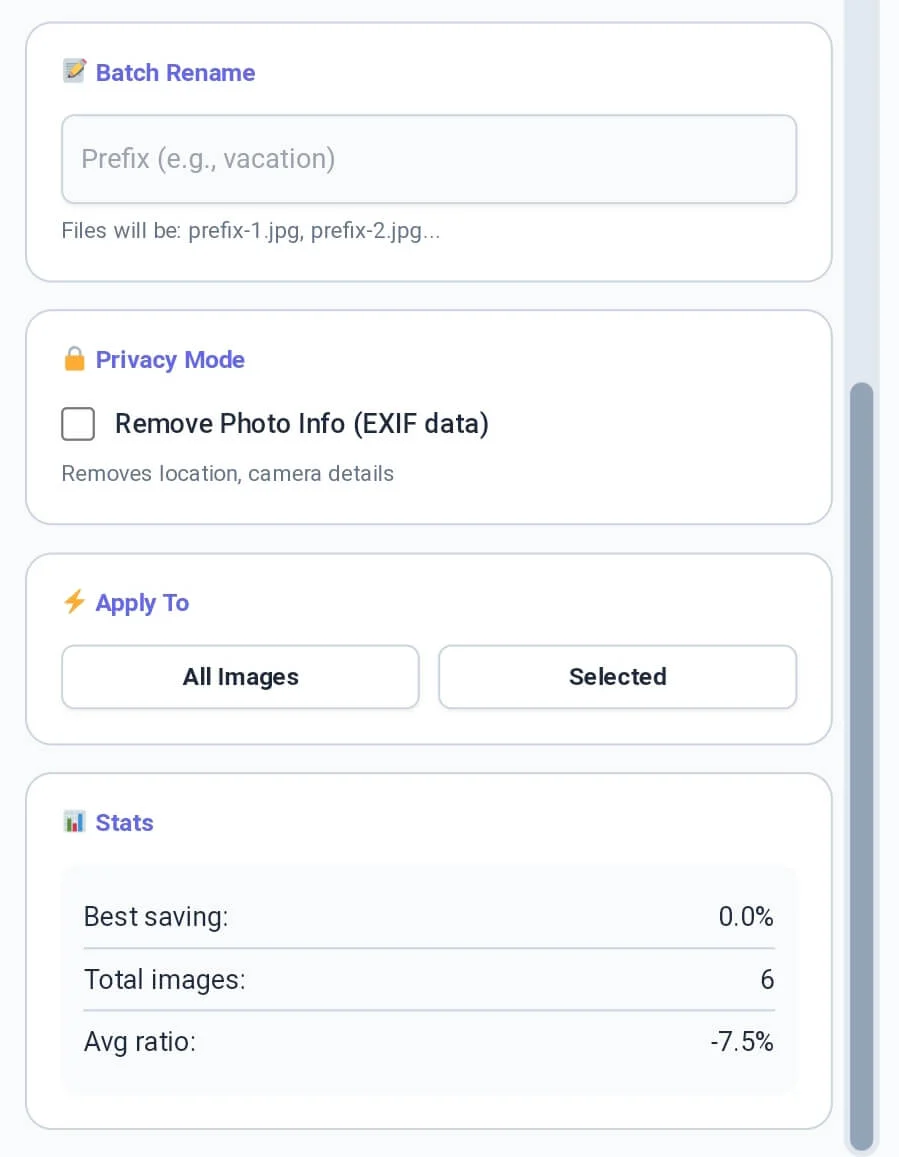
Before you finalize the export, utilize our Privacy Mode. By checking the “Remove Photo Info (EXIF)” box, you strip away camera settings and location data from your files. This is a vital feature for those who convert webp to jpg online for public sharing. Additionally, use the Batch Rename module to add a custom prefix (e.g., “vacation-“) to all your files. This level of control makes our webp to jpg tool a favorite for developers and privacy advocates.
Tip: To check the exact character count for your image alt tags, use our [Character Counter] utility.
Tip: If you need to organize your asset credits or image logs line by line, try our specialized [Line Counter] tool.
Step 4: Finalizing Conversion and ZIP Export
The final phase involves exporting your work. You can convert individual items or click “🔄 Convert All” for the whole batch. Our webp to jpg converter allows you to download files one by one or save everything as a single 📦 ZIP archive. For desktop users, the toolbar features a smooth horizontal scroll and hand-grab functionality to navigate through various action buttons with ease, ensuring your bulk webp to jpg workflow is never interrupted.
Tip: To structure your design documentation paragraphs perfectly, use our [Paragraph Counter] for balance.
Tip: To change the case of your image filenames before batch renaming, use our [Text Case Converter] for instant results.
Professional Comparison: Standard Tool vs. Calcflow
Most online converters limit your file count or use slow, privacy-invasive server-side uploads. Our webp to jpg suite provides a full set of professional modules for high-speed, 100% private data handling.
100% Client-Side Processing: Your images never leave your browser, ensuring total privacy.
Transparency Handling: Custom background color selection for flawless JPG output.
Privacy Guard: Automated EXIF data removal to protect your digital footprint.
Bulk Productivity: Batch renaming and ZIP export features for large projects.
Precision Control: Exact quality sliders and dimension stats for high quality webp to jpg results.
| Feature | Standard Online Tool | Calcflow Webp to JPG |
| No Server Upload (Private) | ❌ No | ✅ Yes |
| Background Color Choice | ❌ No | ✅ Yes |
| EXIF Data Removal | ❌ No | ✅ Yes |
| Batch Filename Renaming | ❌ No | ✅ Yes |
| ZIP Download Support | ❌ No | ✅ Yes |
| Real-time Savings Stats | ❌ No | ✅ Yes |
| High Resolution Resizing | ❌ No | ✅ Yes |
Tip: For technical data handling, you can convert your metadata into binary with our [Text to Binary] tool or decode it back using [Binary to Text] instantly.
Benefits for Developers, Marketers, and SEO Experts
The webp to jpg utility on Calcflow is more than a simple converter; it is a productivity asset for the digital professional:
Designers: Convert WebP assets into JPG format for better compatibility with Adobe Photoshop or Canva.
Social Media Managers: Use the bulk webp to jpg feature to prepare multiple posts for Instagram or Pinterest.
SEO Specialists: Balance your image format strategy by keeping only what’s necessary for site speed and using JPG for social sharing.
Developers: Quickly sanitize and resize large batches of icons or thumbnails with 100% local processing speed.
Tip: For artistic designs or unique mirrored layouts with your captions, try our professional [Text Reverser] engine.
Tip: To rotate your uploaded images before converting them, use our specialized [Image Rotate] tool.
The Technical Logic of WebP to JPG Conversion
Converting WebP to JPG is a technical system based on re-encoding modern pixel data into a standard color matrix. Our webp to jpg engine uses the HTML5 Canvas API to ensure that the logical order of color data is preserved while flattening layers and filling transparent areas with your chosen background color. This level of technical control is why professionals choose Calcflow for their media needs. To learn more about modern image encoding and how compression algorithms work, you can refer to the official MDN Web Docs guide on image types and metadata.
Tip: For secure communication or distress signals in your metadata, try our specialized [Text to Morse Code] tool.
Tip: To manage your kitchen workflow while working on design projects, use our professional [Cooking Timer].
Frequently Asked Questions (FAQs)
1. How do I convert Webp to JPG without losing quality?
In this webp to jpg tool, you can set the quality slider to 100% or 90%. This ensures that your output JPG retains high detail while the engine optimizes the digital weight of the file.
2. What happens to transparent backgrounds in WebP?
Since JPG does not support transparency, our webp to jpg converter allows you to select a background color (like white or black). The transparent areas will automatically be filled with this chosen color.
3. Is my private image data safe on Calcflow?
Absolutely. All processing in our webp to jpg converter happens locally in your browser via JavaScript. We never store or upload your private photos to our servers, ensuring 100% privacy.
4. Can I convert multiple WebP files at once?
Yes! This tool is built for bulk webp to jpg tasks. You can add dozens of images and use the “Convert All” button to process them and then download them all in a single ZIP file.
5. How do I remove location data from my photos?
In the “Privacy Mode” module of the webp to jpg sidebar, simply check the “Remove Photo Info (EXIF data)” box. The tool will strip all metadata before you download the image.
6. Does this tool support Dark Mode?
Yes, click the “Theme” button in the top right corner. This reduces eye strain while you manage large batches of photos or technical assets in our professional webp to jpg suite.
Tip: If you need to shrink your JPG files even further after conversion, use our high-precision [Image Compressor] or [Format Converter].
Conclusion: The Professional Choice for WebP Conversion
The webp to jpg suite on Calcflow.net stands as the most comprehensive media manipulation tool available online. By combining real-time metrics with advanced transparency handling and privacy features, we have built a platform that caters to both creative and technical minds. Stop struggling with slow cloud converters and let our professional tool handle the heavy lifting for you.